 VibeDesk
/Guides
Claude Code GUI for Windows: your options compared
Claude Code is a command-line tool. That is its strength – and the reason many Windows users look for a window around it. An honest look at five common setups, what each one is good at and what it leaves out.
Two kinds of “GUI”
When people search for a Claude Code GUI, they usually mean one of two things:
- A chat-style app instead of the terminal – you type in a prompt box, review changes as diffs and click buttons. The Claude desktop app and the VS Code extension work this way.
- The real terminal with a desktop around it – Claude Code runs exactly as in PowerShell, and the app adds the overview: which session is working, which one waits, approvals in one click. That is what VibeDesk does.
Both run the same Claude Code underneath and use your own Claude account. The question is mostly how you like to work.
1. The plain terminal
The starting point for everyone. Claude Code runs natively on Windows 10 (1809 or later) and Windows 11 – no WSL needed. Install it from PowerShell:
irm https://claude.ai/install.ps1 | iexThen open a terminal in your project folder and run claude. Git for Windows is optional: with it, Claude runs shell commands through Git Bash, without it through PowerShell.
- Good at: everything works first here – every flag, every slash command, scripting with
claude -p. Nothing between you and the tool. - Leaves out: any overview. A permission prompt only gets answered when you look at that window, and there is no notification unless you add a hook – see Windows notifications for Claude Code.
2. Windows Terminal: tabs and panes
The free Windows Terminal turns the plain terminal into something you can organize: one tab per project, renamed so you can tell them apart, split panes to watch two sessions side by side. The guide on running several sessions at once has the commands, including git worktrees so two sessions do not edit the same folder.
- Good at: zero extra software, fast, keyboard-friendly.
- Leaves out: a shared status. With four tabs, finding the one that is waiting for a yes is still up to you.
3. The VS Code extension
Anthropic's Claude Code extension adds a graphical panel to VS Code (version 1.94 or later), and it can be installed in Cursor too. You review and edit Claude's plans before accepting them, see proposed edits as inline diffs, @-mention files with line ranges and open several conversations in tabs or windows. A subscription or a Console account works.
- Good at: staying in your editor. If VS Code is open all day anyway, this is the most natural GUI.
- Leaves out: life outside the editor. It lives in the VS Code window – when you are in the browser or on the sofa, it is out of sight like any other window.
4. The Claude desktop app (Code tab)
The official GUI. The Claude desktop app has a Code tab that runs Claude Code without a terminal, with installers for Windows on x64 and ARM64. It brings Claude Code along, so you do not need Node.js or the CLI for it. Among other things you get parallel sessions in a sidebar – optionally each in its own git worktree – a diff view where you can comment on single lines, an integrated terminal, a browser pane that shows your running app, and permission modes from Manual to Plan and Auto.
- Good at: a polished, chat-style experience straight from Anthropic, with diffs and preview built in.
- Leaves out: a few terminal habits. Per the docs, Shift + Tab does not cycle permission modes, the
dontAskmode is CLI-only, and the app does not read PowerShell profiles, soPATHchanges belong in the Windows environment variables. It needs a Pro, Max, Team or Enterprise plan.
Details and the current feature list: Claude Code Desktop docs.
5. VibeDesk: the real CLI with a desktop around it
Full disclosure: this site belongs to VibeDesk, a free and open-source app (MIT) for Windows 10 and 11. It takes the other route: each session is the real claude in a real terminal, so slash commands, your settings, your CLAUDE.md and even your own status line keep working as you know them. Around it, VibeDesk adds what the terminal lacks:
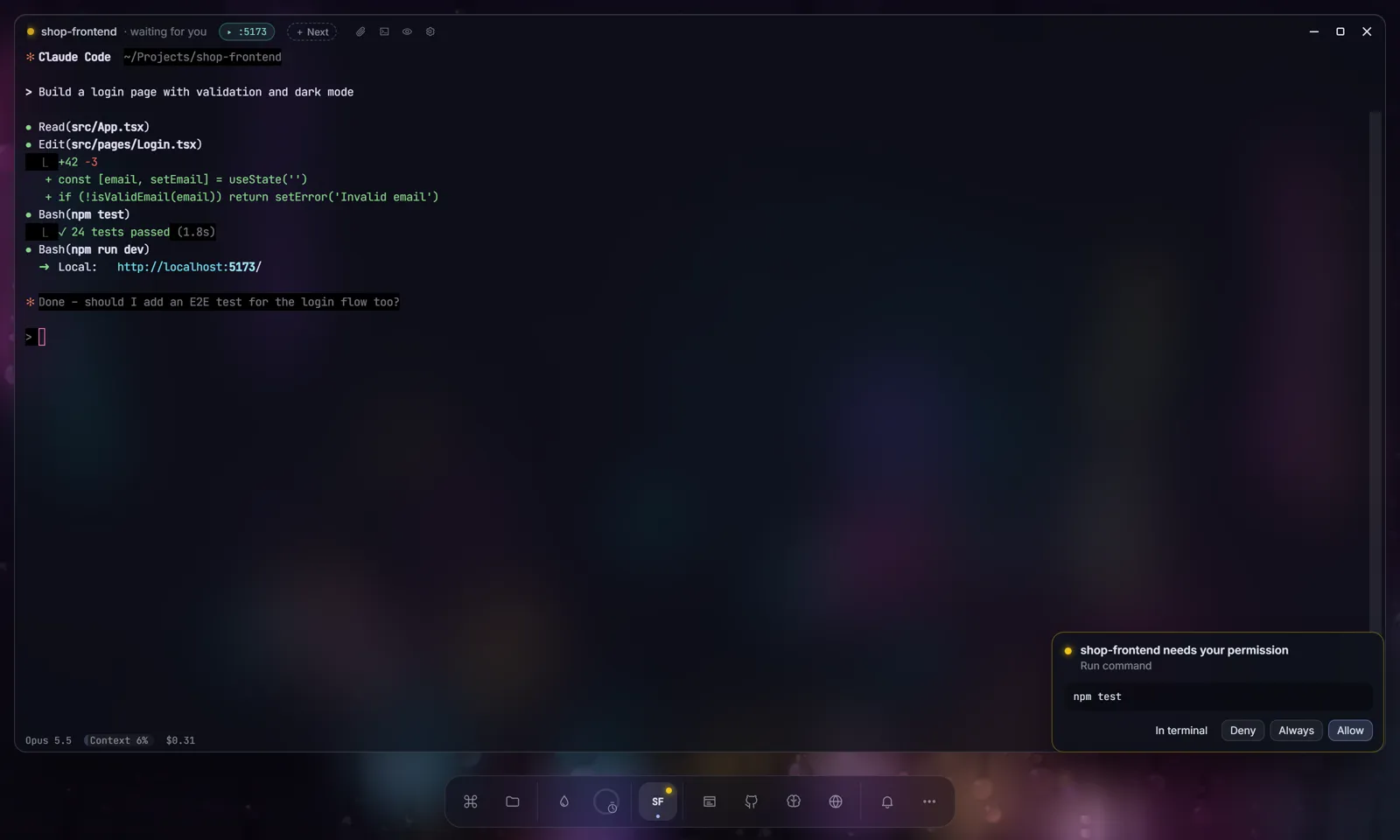
- A status dot per session – green working, yellow waiting for you, blue done – so you see at a glance which one needs you.
- Permission requests as cards with Allow, Always and Deny, and the same card on your phone. How that works: approve Claude Code permissions from your phone.
- Tools around the terminal: a code editor, a Git & GitHub window with diffs and commit messages written by Claude, a live preview of your dev server, and Merge Studio (beta) for parallel sessions in their own worktrees.
- Plans and limits: plans from plan mode as a readable card, the 5-hour limit in the status line on Pro and Max, and Claude picks up on its own once the limit resets.
- Easy start: on first launch it checks for Node.js and Claude Code and offers to install them. English and German.
- Hands off your settings: sessions get VibeDesk's hooks from a temporary settings file passed with
--settings; yoursettings.jsonstays as it is.
Coming in 2.0 on November 1: a status dot in the Windows notification area with approvals in its menu, a wrap-up card with a suggested commit message after a round that changed files, budgets per project and pull requests from the Git window.
- Leaves out: it is Windows-only and runs everything on your PC – there are no cloud sessions. And at its heart it is still the terminal: if you would rather never see one, the desktop app is closer to what you want.
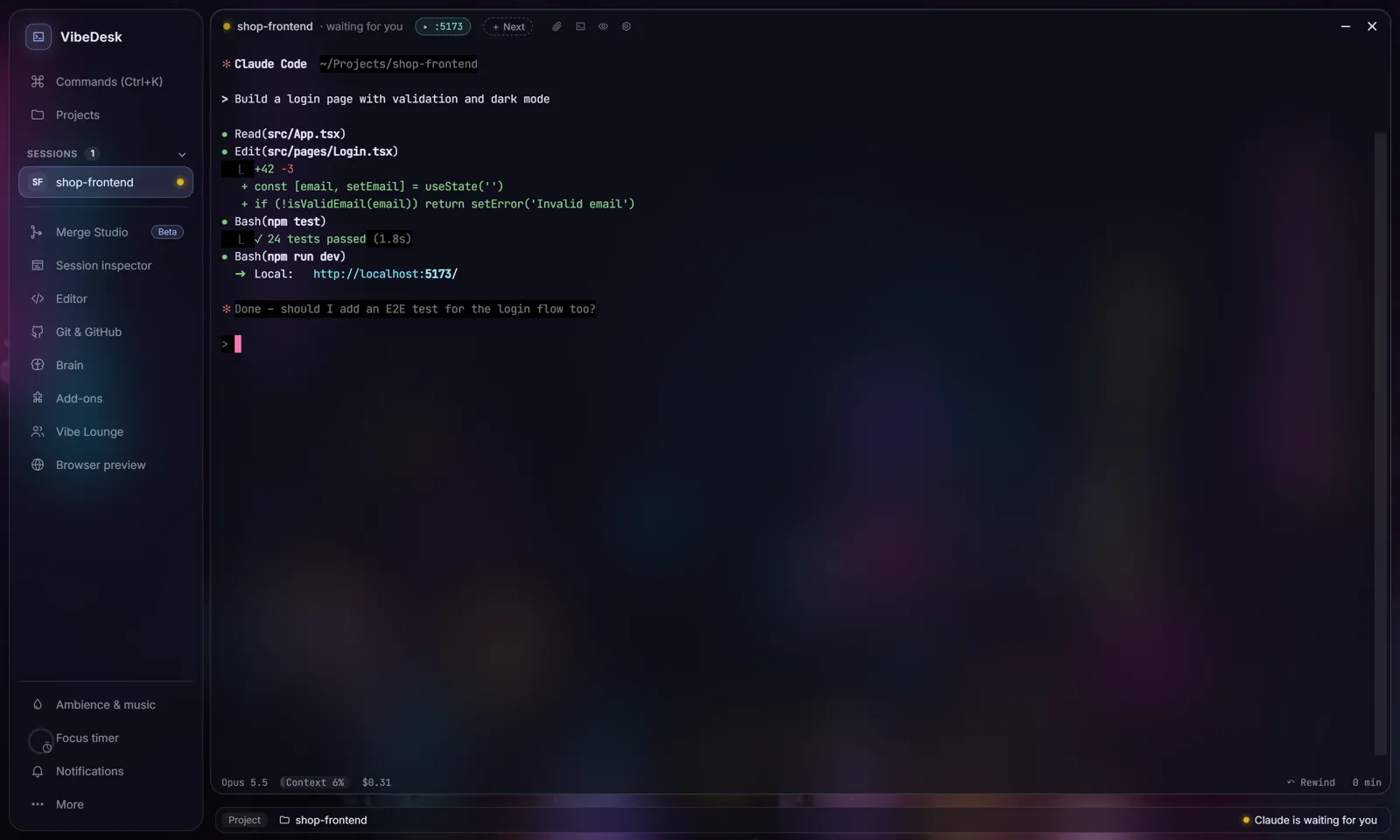
See it in the 5-minute tour or read about sessions and approvals and the tools.
Which one should you pick?
- One session at a time, happy in the terminal: stay there and add a notification hook.
- Your day happens in VS Code or Cursor: the extension.
- You want the official chat-style app and have a paid plan: the desktop app's Code tab.
- Several sessions at once, the real CLI, approvals on your phone: VibeDesk.
None of these lock you in. They all run Claude Code with your account, so you can try two side by side on the same project.
Checklist
- Claude Code installed natively – no WSL needed.
- Git for Windows if you want Claude to use Bash.
- Decide: chat-style app, or real terminal with an overview.
- Whatever you pick: know when a session is waiting for you.
Questions
Is there an official GUI for Claude Code on Windows?
Yes. The Claude desktop app has a Code tab that runs Claude Code with a graphical interface. There are installers for Windows on x64 and ARM64, and it needs a Pro, Max, Team or Enterprise plan. Inside VS Code (and Cursor) there is also the official Claude Code extension.
Do I need WSL to use Claude Code on Windows?
No. Claude Code runs natively on Windows 10 (1809 or later) and Windows 11. Git for Windows is optional: with it, Claude uses Git Bash for shell commands, without it, PowerShell. WSL is only needed if you want Linux toolchains or sandboxing.
Does a Claude Code GUI cost extra?
Claude Code itself needs a Pro, Max, Team, Enterprise or Console account. The desktop app's Code tab comes with a paid Claude plan, the VS Code extension is free to install, and VibeDesk is free and open source under the MIT license. Usage is always billed by Anthropic through your own plan.
Can I mix the terminal and a GUI?
Yes. The desktop app reads the same settings files as the CLI, the VS Code extension can switch to terminal mode, and VibeDesk runs the CLI itself. Your CLAUDE.md files and settings come along wherever you open a project.
Let Claude work.Step in when it counts.
FreeOpen source (MIT)Windows 10/11Uses your own Claude plan